Migrate your CookBook recipes to Cookfolio, photos included
You have built up a real library in CookBook by Fresh Ideas, and you would rather not retype any of it. You do not have to. Cookfolio imports the whole collection in one pass: titles, descriptions, ingredients, steps with their section headers, prep and cook times, and the photos. If you are starting from a mix of paper notebooks, screenshots and files instead, here is how to digitize your family recipes.
This guide covers the part most migration articles skip: CookBook offers four backup formats and they are not equivalent. Picking the wrong one costs you your photos and your timings. It takes ten seconds to pick the right one.
Before you start: export from CookBook
CookBook calls its export “Backup”. The path is the same on iOS and Android:
- Open CookBook and pull out the side menu
- Tap Settings
- Tap Backup / Export recipes
- Pick a format in the dialog, then tap Backup
CookBook hands you a .zip archive. Get that file onto the device where you use Cookfolio: AirDrop, Google Drive, or simply email it to yourself. Anything that moves a file works.
Which backup format should you pick?
The dialog offers four options. Only one of them is the right answer.
YAML files: pick this one. YAML is a plain-text format that keeps the recipe’s structure intact. Each recipe becomes a small .yml file holding its title, description, servings, prep and cook time, source link, ingredient list, step list, and a link to its photo. This is the format Cookfolio reads best, and it is the only one that brings your photos with it.
Text files: works, but it costs you. The text export keeps the title, the source link, the ingredients and the steps. It drops the description, the servings, both times, and the photo. Cookfolio accepts it, and every recipe still imports, but you will be filling those fields back in by hand afterwards. Use it only if the YAML option is missing from your version of the app.
CookBook files: not supported, and not worth supporting. This is CookBook’s own binary format. It is undocumented, no third-party tool reads it, and its contents are not inspectable. There is nothing to be gained from it over YAML.
PDF files: not supported. A PDF is a picture of a recipe, not a recipe. Importing 300 PDFs would mean running 300 separate optical recognitions, at a cost and with an error rate that a structured export makes pointless. If you have a handful of PDFs from elsewhere, Cookfolio’s single-recipe AI import reads those one at a time.
So: YAML files, then Backup.
About the photos, and what CookBook’s own documentation says
CookBook’s help pages are upfront about this: “Images aren’t embedded inside the files; each file points back to CookBook’s image servers.” That sentence has been read by more than one person as “you cannot migrate your photos out of CookBook”. It is not what it means.
The YAML export does not contain the image bytes, true. What it contains is a public link to each image on CookBook’s servers. Cookfolio follows those links during the import, downloads each photo, and re-hosts it on its own storage, in Europe. From then on the photo belongs to your Cookfolio recipe and no longer depends on CookBook being around.
Two practical consequences. First, your recipes arrive illustrated, exactly as they were. Second, the import needs a working connection while it runs, because it is fetching those images. If a photo cannot be downloaded, that single recipe still imports, just without its picture. One unreachable image never costs you a recipe.
The text export contains no image link at all, which is the main reason to prefer YAML.
How to import your CookBook recipes into Cookfolio
-
Open Cookfolio, go to
Settings, then tap Import my recipes from another app.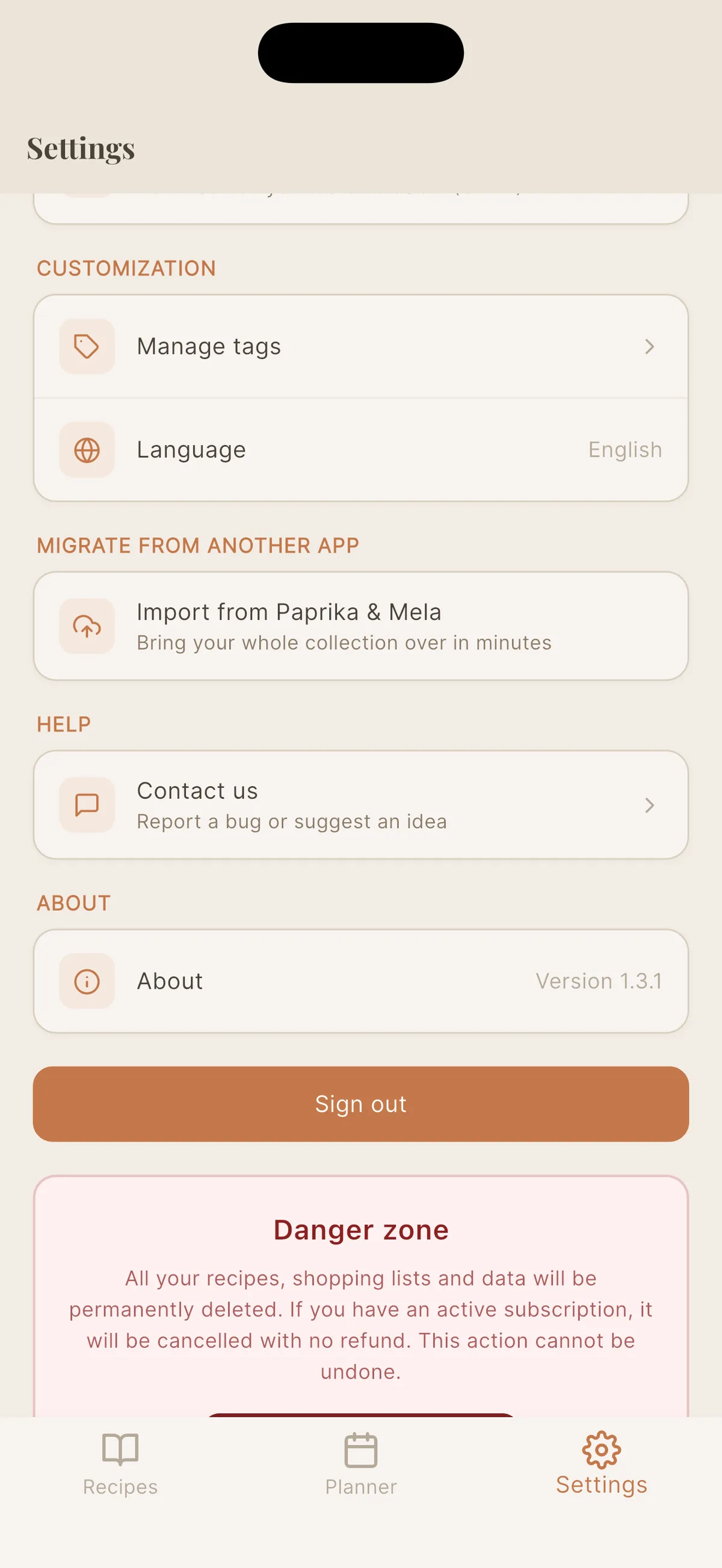
-
Pick CookBook from the list of source apps. The screen recaps the export steps, in case you have not run the backup yet.
-
Select your
.zipfile. Cookfolio confirms how many recipes it found and starts the import in the background.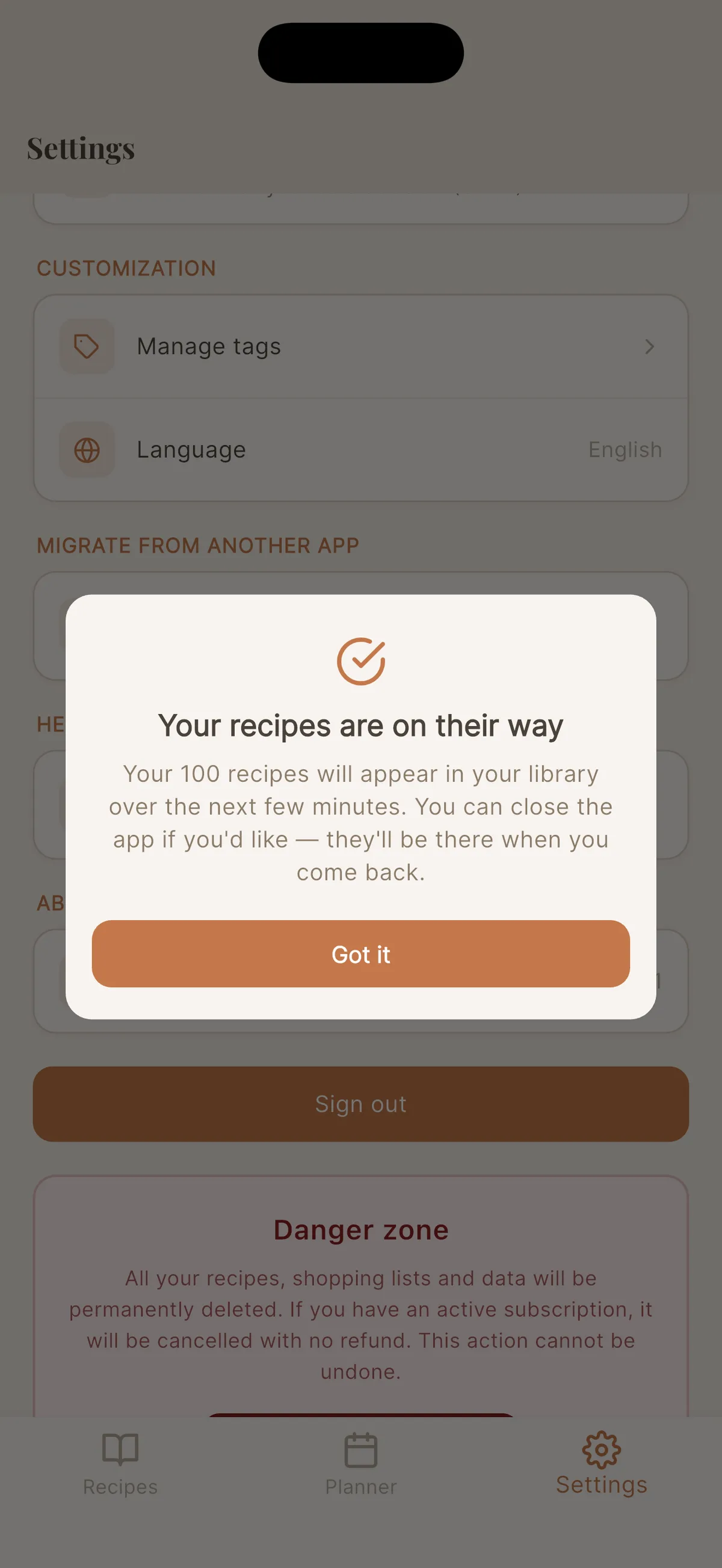
-
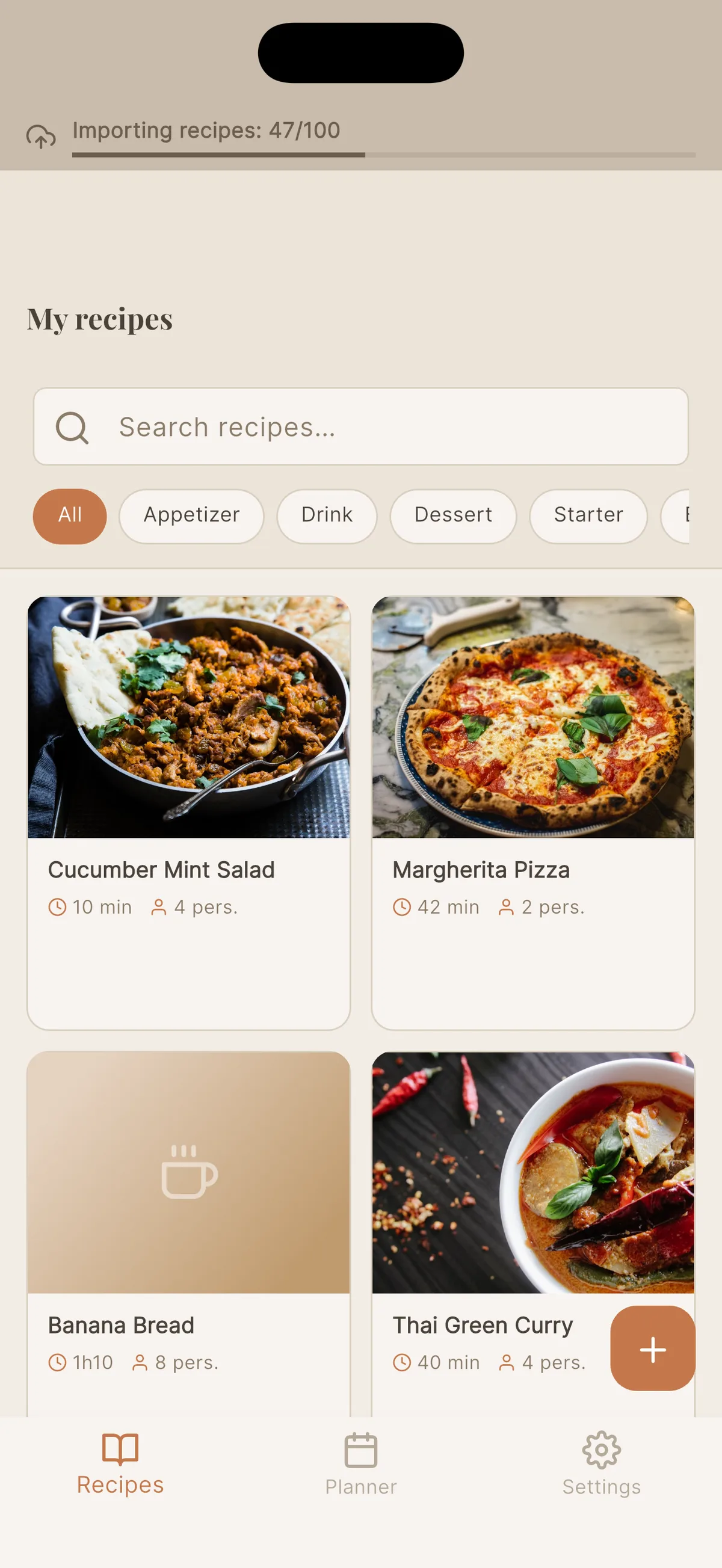
Keep using the app while it works. A banner at the top tracks progress, and recipes land in your library as they come through.
-
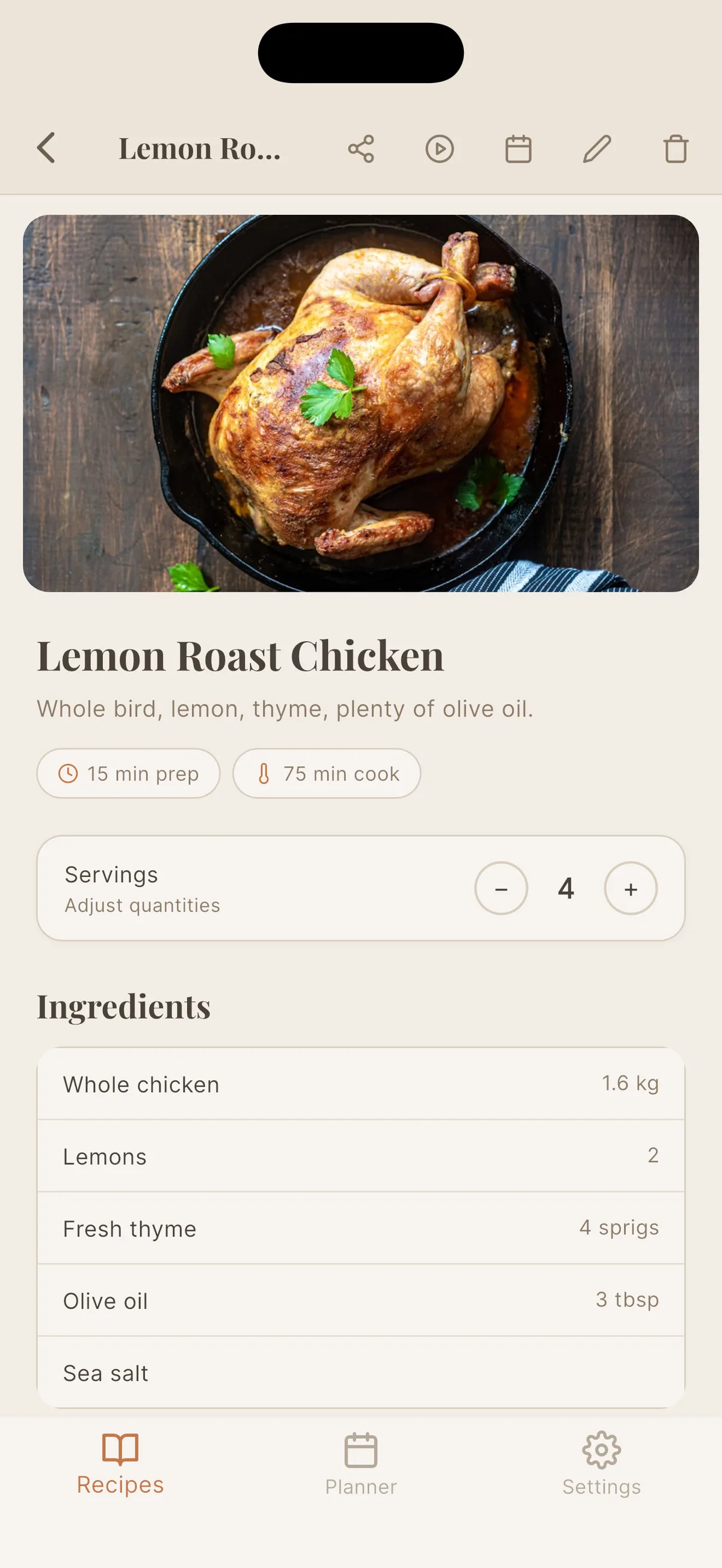
Open any imported recipe: structured ingredients, adjustable servings, the photo, and the section headers preserved in the steps.
What comes across
Photos. Downloaded from CookBook’s servers and re-hosted by Cookfolio, as described above. YAML export only.
Ingredients, split into parts. CookBook stores ingredients as plain lines of text, such as 1 ⅓ cups warm water, 320ml. Cookfolio parses each one into a quantity, a unit and a name. This is not cosmetic: it is what lets you change the number of servings on an imported recipe and watch every quantity recompute. Vulgar fractions, degree signs and accented characters survive the trip intact. It is also what lets each quantity show in the measurement system you pick, Metric or US.
Steps, with their sections. CookBook writes section headers as lines ending in a colon, like Knead the dough: or Rise:. Cookfolio recognises them and attaches them as section titles above the right step, instead of turning each header into a meaningless numbered step of its own. A recipe organised in five parts still reads as five parts.
Times and servings. Prep time and cook time come across, converted from CookBook’s internal format into minutes. Servings are read from CookBook’s free text field, so 2 12-inch pizzas becomes 2 servings and 8 cookies becomes 8.
The source link. If the recipe came from a website or a video, the link follows.
What does not come across
Tags. CookBook’s export carries no category or collection data, in any of its four formats. Imported recipes therefore arrive untagged. This is a limit of the export, not of Cookfolio, and there is no workaround short of retagging in the app. Cookfolio ships eleven default tags with every account, and you can add your own, so the retagging is quick even on a large library.
Favourites and cook counts. The YAML export does contain these fields, but Cookfolio has no equivalent, so they are dropped rather than stored somewhere they would never be seen.
Anything only the PDF has. Formatting, page layout, hand annotations on a scanned page: none of that is in the structured export.
How many recipes can I import at once?
Up to 650 recipes per archive, within a 150 MB limit. A CookBook YAML export is remarkably light, a few kilobytes per recipe, so the size limit is not the one you will meet first. If your collection is larger, export it in several passes: Cookfolio fingerprints each recipe by its title and ingredient list and skips anything it has already imported, so overlapping exports never produce duplicates.
That same fingerprint means you can safely import the YAML archive and then the text archive of the same library. The second one will import nothing, because it recognises every recipe.
What happens if the import is interrupted?
You can close the app while it runs. Cookfolio finishes the job on its servers and your recipes are waiting when you come back. If the connection drops or the job takes longer than expected, it resumes on its own from where it stopped. There is no “Retry” button to hunt for, and no half-imported recipes.
What’s next?
Once the library has moved, you can keep growing it without ever opening CookBook again: paste a link from a recipe site, import from a YouTube video, or photograph a page from a paper cookbook. Old and new recipes sit in the same book, with the same adjustable servings and the same cooking mode.
Something went wrong? Tell us
If an import fails, or a recipe comes through wrong, do not fight it on your own. Open Cookfolio, go to Settings, then Contact us, and describe what happened. The message reaches us with the technical details of your import already attached, so we can see what the server saw.
The person who writes the app is the person who answers. Every CookBook export is slightly different, and a real file that we could not read is the most useful thing you can send us: it is how the next version stops failing on it. We will do our best to unblock you quickly.
Plan required
Bulk migration is included in Cookfolio’s Pro and Family plans. The free plan allows 5 recipes and 5 imports, which is enough to try the app but not to move a library.
Try it now
Open CookBook, Settings, Backup Recipes, YAML files. Then open Cookfolio and let it do the rest. Your collection follows you, photos included.
Try Cookfolio for free
5 free recipes + 5 free imports. No credit card required.