Migrate your Recipe Keeper recipes to Cookfolio, sections included
You have kept your collection in Recipe Keeper for years, and retyping it recipe by recipe is not a project you want to start. You do not have to. Cookfolio imports the whole library in one pass: titles, photos, ingredients, steps, categories, prep and cook times, servings and calories. If you are starting from a mix of paper notebooks, screenshots and files instead, here is how to digitize your family recipes.
Recipe Keeper is the fourth supported source app, after Paprika, Mela and CookBook. Its export format has one quirk that works in your favour, and one blind spot worth knowing about before you begin. This guide covers both.
Before you start: exporting from Recipe Keeper
Recipe Keeper puts its export in the same place on every version, iOS, Android, Windows and Mac:
- Open Recipe Keeper and go to Settings
- Tap Import/Export
- Under Export recipes to, choose the Recipe Keeper .zip file
- Save the archive to your device or to your cloud storage
Recipe Keeper hands you a .zip file. Get that file onto the device where you use Cookfolio: AirDrop, Google Drive, or simply an email to yourself. Any way of moving a file will do.
If Recipe Keeper also offers a PDF export, that is not the one to pick. A PDF is a picture of a recipe, not a recipe: it would mean running text recognition over every page again, at a cost and an error rate that a structured export makes pointless.
What is inside the archive, and why that is good news
Open the archive out of curiosity and you will find two things: a single recipes.html file holding your entire library, and an images/ folder holding the photos, one per recipe.
Those photos are real files, sitting right next to the text. That is the meaningful difference from other apps, which export only a link back to their own image servers. In practice, your Recipe Keeper archive is complete and self-contained. Cookfolio has nothing to fetch from anywhere else during the import, no photo depends on a third-party server still being up, and nothing is lost if you keep that archive in a digital drawer for ten years.
The other quirk is that all your recipes live in one single file. Cookfolio cuts it up recipe by recipe before it starts work, so there is nothing for you to prepare. You pick the archive, and the app handles the rest.
How to import your Recipe Keeper recipes into Cookfolio
-
Open Cookfolio, go to
Settings, then tap Import my recipes from another app.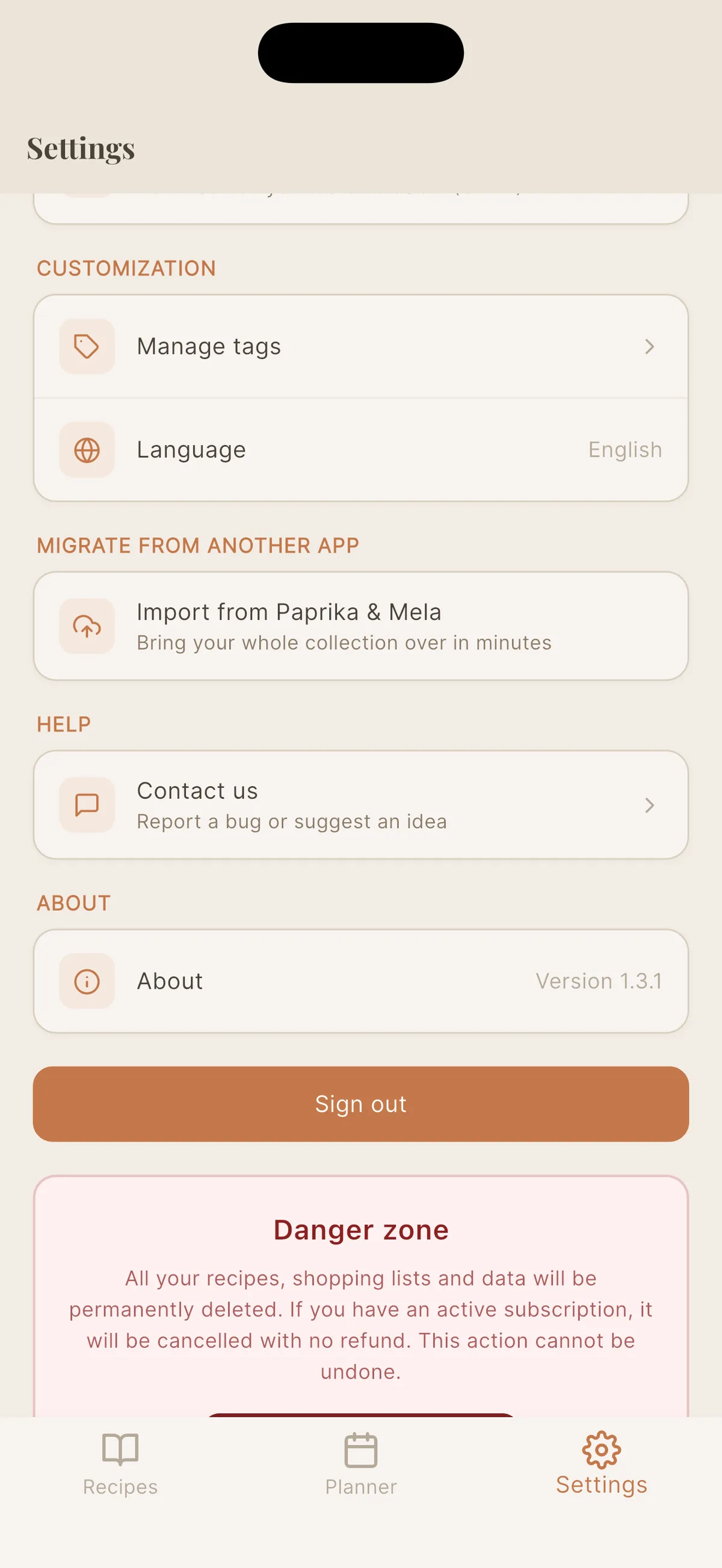
-
Choose Recipe Keeper from the list of source apps. The screen repeats the export path, in case you have not run the backup yet.
-
Select your
.zipfile. Cookfolio confirms how many recipes it found and starts the import in the background.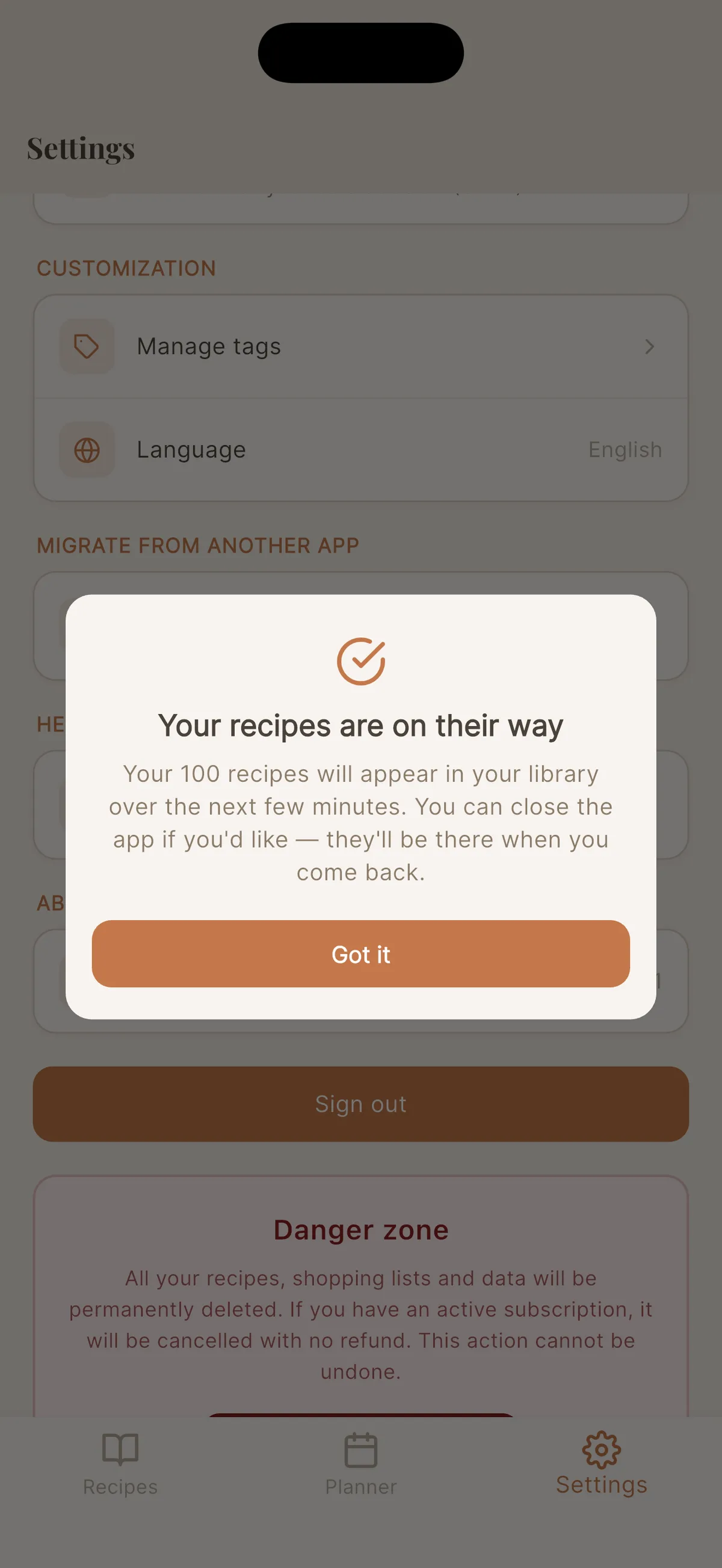
-
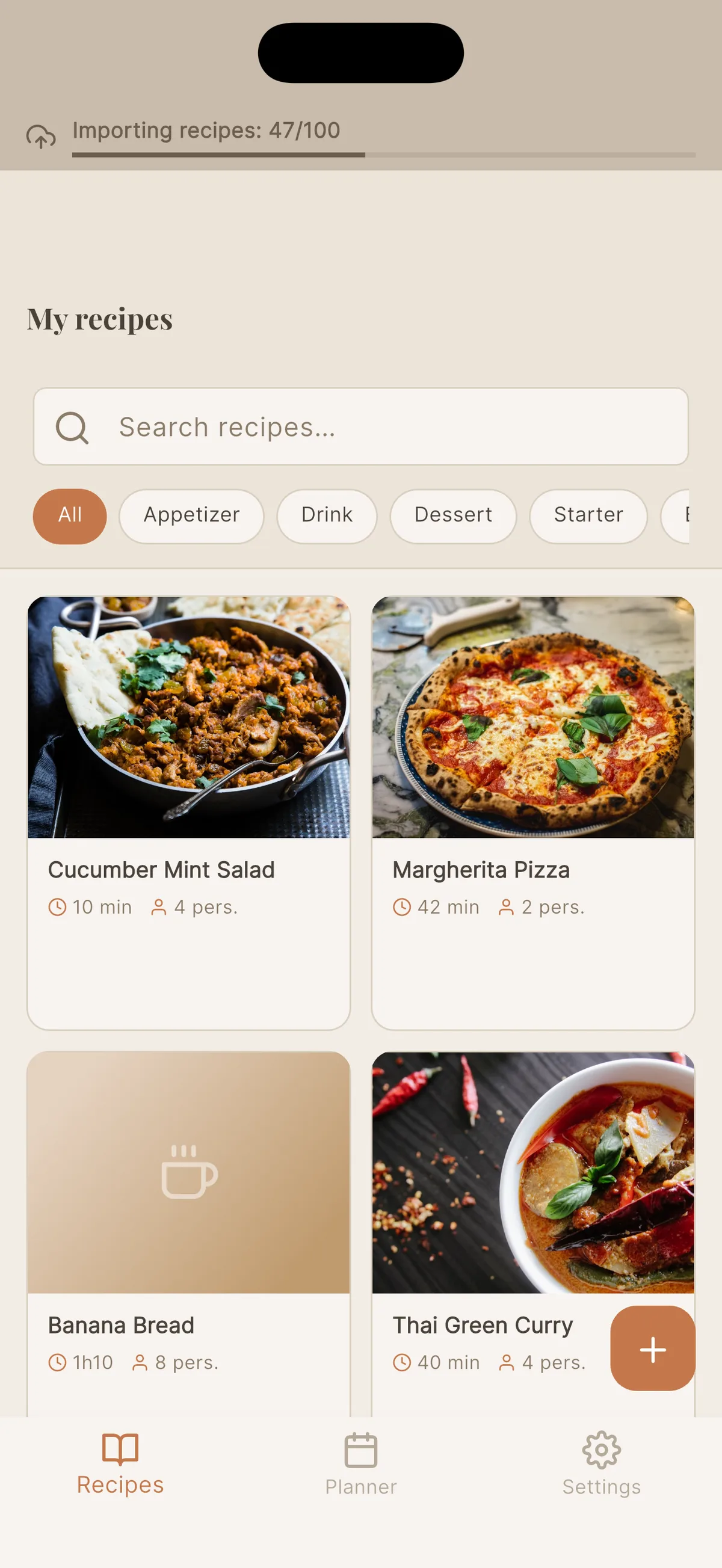
Carry on using the app meanwhile. A banner at the top tracks progress, and recipes show up in your library as they land.
-
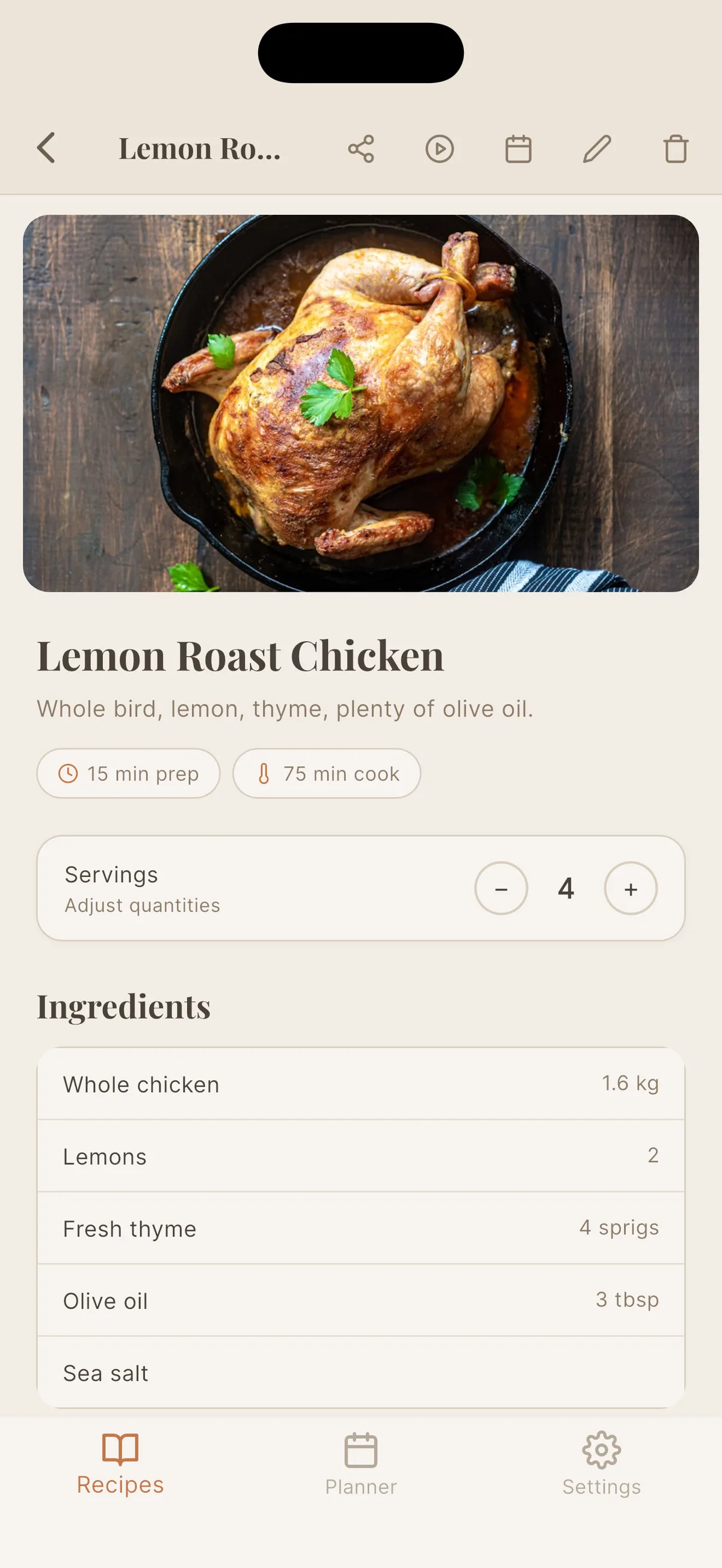
Open any imported recipe: structured ingredients, adjustable servings, photo kept, and ingredient sections preserved.
What comes across
The photos. Every illustrated recipe arrives with its image, taken straight from the archive’s images/ folder and stored on Cookfolio’s own storage, in Europe. If an image is missing or turns out to be unreadable, the recipe still imports, simply without its photo. A failed image never costs you a recipe.
The ingredients, split apart. Recipe Keeper stores ingredients as plain text lines, along the lines of 1 1/2 cups all-purpose flour. Cookfolio splits each line into quantity, unit and name. This is not cosmetic: it is what lets you change the number of people on an imported recipe and watch every quantity recalculate. The same split lets that flour read in the measurement system you pick: 1 ½ cups with the US setting, 360 ml with the Metric one, never grams. US or metric units for your recipes covers both settings. Fractions, degree symbols and accented characters all survive the trip.
The ingredient sections. This is the new capability shipped alongside Recipe Keeper support. When you have organised a recipe into groups, along the lines of For the crust, For the lemon curd, To serve, those headings come across and land above the right ingredient. They are not sent through as ingredients in their own right, so you will never find “For the crust” loitering in your shopping list. A tart written in three parts still reads in three parts.
The steps, without their numbering. Recipe Keeper often writes the number into the step text itself, along the lines of 1. Melt the butter. Cookfolio already numbers its own steps, so it strips that prefix rather than show the figure twice. The rest of the text is untouched.
The categories, turned into tags. Recipe Keeper separates the course, such as Dessert, from the free categories you created yourself, such as Cake. Both come across. When a name matches a tag you already have, the recipe joins that existing tag. Otherwise Cookfolio creates the tag for you. A recipe filed twice under the same word does not produce two tags.
Times, servings and calories. Prep time and cook time come across, converted to minutes. A time left blank stays blank rather than arriving as zero minutes. The serving count is read from Recipe Keeper’s free-text field, so Serves 6-8 becomes 6 servings and 10 waffles becomes 10. Calories per serving come across too.
The source link. If the recipe came from a website, the link follows and stays tappable from the recipe page. When Recipe Keeper simply wrote its own name in that field, because you typed the recipe by hand, nothing is added.
Your notes. The recipe’s personal notes block is carried into the notes on the Cookfolio recipe.
What does not come across
The description. Recipe Keeper has no such field at all. Imported recipes therefore arrive with no introduction text, and you can write one at any time.
The other nutrition values. The export carries ten figures: calories, plus protein, carbohydrates, sugars, fat, saturated fat, fibre, sodium, cholesterol and serving size. Cookfolio keeps calories per serving only, because that is the single nutrition field in its recipe model. The other nine are dropped rather than tucked away somewhere nobody would find them.
The rating and the favourite flag. Both fields are present in the export, but Cookfolio has no equivalent today. They are set aside.
How many recipes at once?
Up to 650 recipes per archive, within a 150 MB ceiling. On a Recipe Keeper export it is the photos that weigh, not the text. If your collection is bigger than either bound, export it in several passes.
Cookfolio fingerprints each recipe by its title and its ingredient list, and compares that fingerprint against what your library holds at the time of the import. Two practical consequences. First, overlapping exports never produce duplicates: the second archive recognises what is already there and moves on. Second, if you delete a recipe and re-import the same archive, it comes back. The question being asked is “do I already have this recipe”, not “did I ever import it”.
What happens if the import is interrupted?
You can close the app while it runs. Cookfolio finishes the work on its servers and your recipes are waiting when you come back. If the connection drops or the job takes longer than expected, it picks up on its own where it stopped. There is no “Retry” button to hunt for, and no half-imported recipe.
What next?
Once the library has moved, you can keep growing it without ever opening Recipe Keeper again: paste a recipe website link, import from a YouTube video, or photograph a cookbook page. Old and new recipes live in the same book, with the same adjustable servings, the same weekly planner and the same cooking mode.
Something wrong? Tell us
If an import fails, or a recipe lands crooked, do not wrestle with it on your own. Open Cookfolio, go to Settings, then Contact us, and describe what happened. The message reaches us with the technical details of your import already attached, so we see what the server saw.
The person who writes the app is the person who will answer you. Every Recipe Keeper export is a little different, and a real file we failed to read is the most useful thing you can send us: that is how the next version stops failing on it. We will do our best to unblock you quickly.
Plan required
One-go migration is included in Cookfolio’s Pro and Family plans. The free plan allows 5 recipes and 5 imports, enough to try the app out, not enough to move a library.
Try it now
Open Recipe Keeper, Settings, Import/Export, .zip file. Then open Cookfolio and let it do the rest. Your collection follows, photos and sections included.
Try Cookfolio for free
5 free recipes + 5 free imports. No credit card required.